




















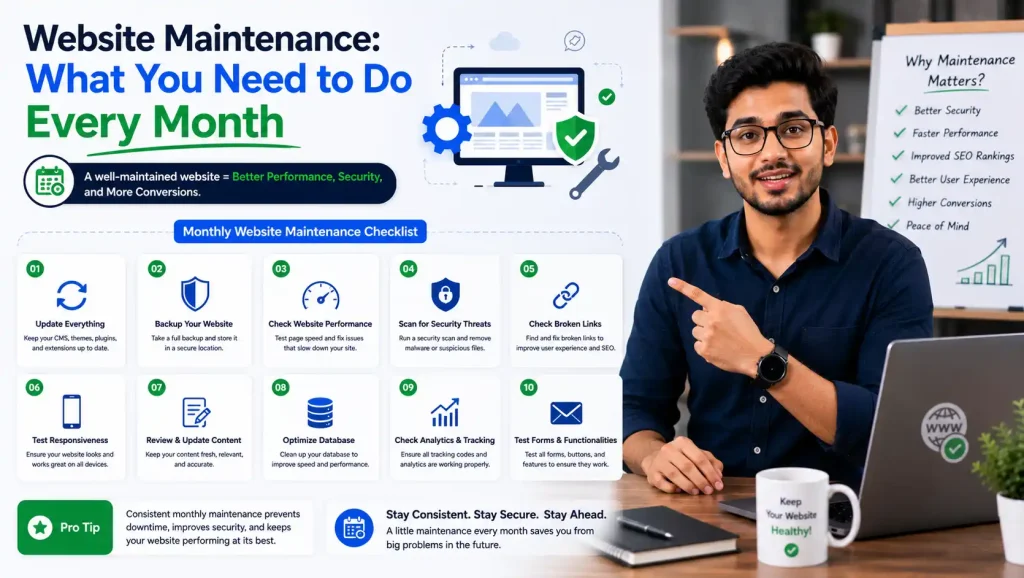
website maintenance checklist
Website Maintenance: What You Need to Do Every Month
Website maintenance checklist . A complete, actionable monthly checklist to keep your website fast, secure, and ranking higher on Google — without missing a single critical task.
⏱ 12 min read
✅ 2,800 words
📋 Table of Contents
Your website is the most important digital asset your business owns. But launching it once and forgetting about it is one of the most expensive mistakes any business owner can make. A neglected website becomes slow, gets hacked, loses search rankings, and drives visitors away — often without you even knowing it.
Think of it like owning a car. You wouldn’t drive for years without changing the oil, checking the brakes, or rotating the tires. Websites work exactly the same way. Monthly website maintenance is what separates businesses that grow online from those that silently lose customers every day.
In this guide, we break down everything you must do every single month to keep your website healthy, fast, secure, and optimized for search engines. Whether you’re a business owner managing your own WordPress site or a developer maintaining client websites, this checklist will become your monthly Bible.
of cyber attacks target small business websites
page load delay = 7% drop in conversions
users won’t return after a bad website experience
1 Why Monthly Website Maintenance Matters
Many website owners make the mistake of treating their website like a brochure — design it, launch it, and leave it. The reality is that the internet is a constantly changing environment. Google updates its algorithm hundreds of times a year. Hackers discover new vulnerabilities daily. Your hosting server changes. Plugins become outdated.
Here’s what happens when you don’t maintain your website monthly:
- ✗Outdated plugins and themes become security vulnerabilities — hackers exploit them within days of a known vulnerability being published.
- ✗Page speed deteriorates as databases bloat, images pile up, and caching becomes stale — leading to higher bounce rates.
- ✗Broken links frustrate visitors and signal to Google that your site is low quality, hurting your SEO rankings.
- ✗Without backups, a single server crash or hack can permanently destroy years of work.
- ✗SSL certificates expire, turning your site into a “Not Secure” warning for every visitor.
The good news? A structured monthly maintenance routine takes 2–4 hours per month and protects everything you’ve built. Let’s go through each task in detail.
2 Security Updates & Checks
Security is the foundation of website maintenance. A compromised website can be blacklisted by Google within hours, destroying your traffic and reputation overnight. Monthly security maintenance is non-negotiable.
🔒 Update Everything — Core, Plugins, and Themes
If you’re on WordPress, the most common entry point for hackers is outdated plugins and themes. Every month, go through your WordPress dashboard and update:
- ✓WordPress core to the latest stable version
- ✓All active plugins — check changelogs for security patches
- ✓Your active theme and any parent themes
- ✓PHP version on your hosting — outdated PHP is a massive vulnerability
🛡️ Run a Security Scan
Use tools like Wordfence, Sucuri, or MalCare to run a full malware scan every month. These tools check your files against known malware signatures and alert you if any files have been modified unexpectedly.
- ✓Run full malware scan and review results
- ✓Check failed login attempts and block repeated offenders
- ✓Review user accounts — remove any accounts that shouldn’t exist
- ✓Verify your SSL certificate is valid and not expiring within 30 days
- ✓Check that your website forces HTTPS (no HTTP pages)
3 Performance Optimization
Google’s Core Web Vitals are now direct ranking factors. A slow website doesn’t just frustrate users — it actively hurts your position in search results. Monthly performance optimization ensures your site stays fast even as content, plugins, and traffic grow.
⚡ Database Cleanup
WordPress databases accumulate clutter rapidly — post revisions, spam comments, transient options, orphaned metadata, and more. Every month, clean your database using tools like WP-Optimize or Advanced Database Cleaner.
- ✓Delete all post revisions older than 30 days (keep last 2–3 per post)
- ✓Clear auto-draft and trash posts
- ✓Remove spam and unapproved comments
- ✓Clean expired transients from options table
- ✓Run database optimization (defragment tables)
🖼️ Image Audit & Compression
Images are typically responsible for 60–80% of a page’s total file size. Monthly, check for any new images that haven’t been compressed and ensure they’re being served in modern formats like WebP.
- ✓Compress all new images using ShortPixel, Imagify, or Smush
- ✓Convert uncompressed images to WebP format
- ✓Ensure all images have lazy loading enabled
🗄️ Caching Review
Your caching configuration may need adjustment as your site grows. Monthly, verify that page cache, browser cache, and object cache are all functioning correctly.
- ✓Clear and rebuild page cache after major updates
- ✓Test page speed on Google PageSpeed Insights or GTmetrix
- ✓Confirm Core Web Vitals scores (LCP, FID, CLS) are in “Good” range
4 Backup & Recovery Verification
Backups are only useful if they actually work. Many website owners assume their host is backing up their site — only to discover during a crisis that backups haven’t run in weeks, or the restore process is broken. Monthly verification is critical.
- ✓Verify that automated backups ran successfully in the past 30 days
- ✓Confirm backups are stored in at least TWO locations (e.g., hosting + cloud like Google Drive or Dropbox)
- ✓Test restore at least once per quarter — do a full site restore on a staging environment
- ✓Ensure you have both database and file backups (not just one)
- ✓Check that backup file sizes are consistent — a drastically smaller backup may indicate a failure
5 SEO Health Checks
Your SEO isn’t a “set it and forget it” investment. Google’s algorithm changes, competitors publish new content, and technical issues creep in silently. Monthly SEO health checks protect and improve your organic rankings.
🔍 Crawl Your Website for Errors
Use Google Search Console (free) or Screaming Frog to crawl your site and identify technical SEO issues:
- ✓Check Google Search Console for crawl errors and 404 pages
- ✓Fix or redirect all 404 (page not found) errors with proper 301 redirects
- ✓Look for pages accidentally blocked in robots.txt or marked “noindex”
- ✓Verify that your XML sitemap is up-to-date and submitted to Google
- ✓Check for and fix duplicate title tags and meta descriptions
🔗 Check for Broken Links
Broken internal and external links hurt both user experience and SEO. Use tools like Broken Link Checker or the Ahrefs Site Audit to find and fix them monthly.
- ✓Scan all internal links and fix any that are broken
- ✓Scan external/outbound links — remove or update links to dead pages
- ✓Add redirect rules for any URLs you’ve changed
📈 Review Search Performance
- ✓Check Google Search Console for impressions, clicks, and average position
- ✓Identify pages that dropped in rankings and investigate why
- ✓Look for new keyword opportunities in your Search Console queries report
- ✓Verify structured data (schema markup) has no errors in Rich Results Test
6 Content Audit & Updates
Fresh, accurate content is one of the strongest signals Google uses to determine whether your site deserves high rankings. Monthly content audits keep your existing pages relevant and help your newer content get indexed faster.
📝 Review Existing Content
- ✓Identify your top 5 traffic-driving pages and ensure content is still accurate and up-to-date
- ✓Update any pages with outdated statistics, dates, prices, or information
- ✓Add internal links from new content to older high-value pages
- ✓Check that all call-to-action buttons and forms on key pages are working correctly
🗑️ Manage Thin & Duplicate Content
Pages with very little content (under 300 words with nothing unique to offer) can drag down your entire site’s quality score in Google’s eyes. Monthly, audit for and handle thin content.
- ✓Identify pages with thin content and either expand them or add “noindex”
- ✓Check for any duplicate content issues, especially on tag and category pages
- ✓Review auto-generated or templated pages for content quality
7 Analytics Review
You cannot improve what you don’t measure. Monthly analytics reviews give you actionable data on what’s working, what isn’t, and where your opportunities lie.
- ✓Review total sessions, users, and pageviews — compare to previous month and year
- ✓Check bounce rate by page — pages with very high bounce rates may need improvement
- ✓Analyze traffic sources: which channels (organic, social, direct, referral) grew or declined?
- ✓Review conversion rates on goal pages (contact forms, purchase pages, sign-ups)
- ✓Identify your highest-traffic pages — are they converting? If not, can they be improved?
- ✓Check device breakdown — if mobile traffic is high, is your mobile experience optimized?
8 Technical & Code Health Checks
Technical debt accumulates silently. Old, unused plugins add bloat and security risk. Deprecated code causes errors. Monthly technical audits keep your codebase lean and healthy.
🔧 Plugin & Theme Audit
- ✓Deactivate and delete any plugins you’re no longer using — inactive plugins still pose security risks if not deleted
- ✓Check for plugins that haven’t been updated in 6+ months — consider replacing them
- ✓Review PHP error logs for any new warnings or fatal errors
📱 Cross-Browser & Mobile Testing
- ✓Test your homepage and key landing pages in Chrome, Firefox, and Safari
- ✓Test on both Android and iOS mobile devices
- ✓Verify all forms are submitting correctly and confirmation emails are being received
- ✓Check that all navigation menus work properly on mobile (hamburger menus, dropdowns)
🔐 SSL & Domain Checks
- ✓Check SSL certificate expiration date — set a calendar reminder 30 days before expiry
- ✓Verify domain registration expiry date — losing your domain is catastrophic
- ✓Confirm your hosting plan hasn’t lapsed or hit resource limits
9 Uptime & Server Monitoring
If your website goes down and you don’t know about it for 6 hours, you’ve potentially lost dozens of customers and hundreds of organic impressions. Uptime monitoring is the safety net that alerts you the moment anything goes wrong.
- ✓Set up real-time uptime monitoring using UptimeRobot (free) or Pingdom
- ✓Review your uptime report — aim for 99.9% uptime or better
- ✓Investigate any downtime events from the past 30 days with your hosting provider
- ✓Review server resource usage (CPU, memory, disk) — are you approaching limits?
- ✓Check email deliverability — are transactional emails from your site landing in inbox or spam?
10 Your Complete Monthly Website Maintenance Checklist
Bookmark this table and use it as your go-to reference every month. Print it, add it to your project management tool, or screenshot it for your team.
| Task | Category | Priority | Tool / Resource |
|---|---|---|---|
| Update WordPress core, plugins, themes | Security | Critical | WP Dashboard |
| Run malware & security scan | Security | Critical | Wordfence / Sucuri |
| Verify SSL certificate validity | Security | Critical | SSL Checker / cPanel |
| Verify backups completed & test restore | Backup | Critical | UpdraftPlus / BlogVault |
| Database cleanup & optimization | Performance | High | WP-Optimize |
| Run PageSpeed / Core Web Vitals test | Performance | High | Google PageSpeed Insights |
| Compress new images | Performance | High | ShortPixel / Imagify |
| Check GSC for crawl errors & 404s | SEO | High | Google Search Console |
| Fix broken links (internal + external) | SEO | High | Broken Link Checker / Ahrefs |
| Review analytics & traffic trends | Analytics | High | Google Analytics 4 |
| Update outdated content | Content | High | WP Editor |
| Test all contact forms & CTAs | Technical | High | Manual / WPForms |
| Review uptime report | Monitoring | Medium | UptimeRobot / Pingdom |
| Remove unused plugins & themes | Technical | Medium | WP Dashboard |
| Check mobile responsiveness | Technical | Medium | Chrome DevTools |
| Verify XML sitemap is updated | SEO | Medium | Yoast SEO / RankMath |
| Check domain expiry date | Technical | Low | Domain Registrar |
🎯 Final Thoughts: Consistency is Everything
Website maintenance isn’t a one-time task or something you do when something breaks. It’s a monthly discipline — like accounting for your business finances or servicing your equipment. The businesses that win online treat their websites like living assets that need constant care.
The good news is that once you establish a routine using this checklist, most of these tasks take only a few minutes each. Set aside 2–3 hours on the first Monday of every month, work through this checklist systematically, and document what you find. Over time, you’ll catch issues earlier, your site will run faster, your rankings will improve, and your visitors will have a better experience.
If you’d rather focus on running your business and let an expert handle monthly maintenance, consider a professional Website Maintenance Service. The cost is almost always less than what you’d lose from a single hack, ranking drop, or extended downtime event.
Your website is open 24 hours a day, 7 days a week — treat it accordingly.
Need Help With Your Website Maintenance?
Let our team handle your monthly website maintenance so you can focus on growing your business — not fixing technical problems.